Thank you for visiting my blog!

Thank you for visiting my blog!

This blog is used to share information I find about the families I am researching. To see these family names click on the "My Families" tab. Please feel free to make comments, corrections, and ask questions here or on my Facebook page or go to the "About Me" tab to send an e-mail.

Reading this Blog

My posts can be accessed by the date posted from the column on the right. Blog posts containing specific surnames can be found by clicking on the names in the left column.

Line

Showing posts with label OneNote. Show all posts

Thursday, October 13, 2022

OneNote is my Default Printer


I use Windows 11, but most computers' directions should be similar. Go to Settings, 
choose Bluetooth & devices, choose Printers & Scanners, go to Send to OneNote, 
and Set as default.


About three years ago, I set OneNote as my default printer. I use less paper and ink, my office is much less cluttered, and there are seldom any piles. Almost everything that I regularly printed on paper now prints to OneNote.

Receipts, bills, travel reservations, and correspondence needed for only a short period are printed to OneNote and deleted when no longer needed. 

Reading materials such as genealogy society newsletters and quarterlies are printed to OneNote, and I often read them on my phone or iPad when traveling or waiting for appointments. 

Conference and webinar handouts are printed to OneNote, and I take notes directly on the handout on my computer or iPad. 

Items printed to OneNote are eventually 
  • deleted, 
  • moved to an appropriate OneNote notebook,
  • printed to a PDF using the dropdown "Microsoft Print to PDF," and the PDF is added to my digital files, 
  • OR, copied and pasted to a Word document and added to the appropriate digital file. This last option is used when I know I may want to add to, edit, or be able to copy parts of a document. 


If you want to know more about the families I research, click here to like my Facebook page, where you will see each post and other genealogical finds. 
.
Diana
© 2022 

Monday, May 2, 2022

Creating My All-Encompassing Genealogy Research Log in OneNote


I struggled for years to use a research log. I tried a variety of tables and spreadsheets but would never manage to fill in all of the blanks.  My best efforts consisted of notes and saved links in a OneNote notebook. These efforts were somewhat decent but not always used. When I did not use a research log, I duplicated searches, did not always add sources, and was easily distracted.


Creating My Research Log


I did not want a formal report to share but knew that I needed to improve my research strategies and wanted a final product that would reflect reasonably exhaustive research. Determined to create a log I would use regularly, I spent much time critiquing my research habits and learning about research logs and time management. 

My requirements were as follows.
  • a document to contain all research information about one person or subject and serve as a research log, a research plan, and a summary of my findings
  • the ability to add as little or as much information as needed as well as adding sources, narratives, and screenshots of records 
  • an easy-to-access research log template 
  • a reminder to use a variety of repositories appropriate for the search and a list of record types to use as a visual reminder when planning research
  • a section for a timeline 
  • a way to include my ancestors' FAN Club (Family, Associates, and Neighbors) 
  • a place to add a summary, next steps, and, if needed, a rough draft for a blog post
  • a strategy as to what happens to the completed research log

Tuesday, April 26, 2022

Take a Look at My OneNote Notebooks


In my last post, 
Using OneNote as Temporary Storage for My Genealogy Research, I told of my change from permanent family notebooks in OneNote to using OneNote as temporary storage for much of my research. In this post, I will describe the OneNote notebooks I use for genealogy. Samples you can copy to your OneNote notebooks can be found at the bottom of this post. 

I currently have five working OneNote notebooks. That is a considerable reduction of over 25 notebooks since the summer of 2020, when I decided to stop storing information in family notebooks.

                OneNote Notebooks used for Genealogy                     

I use only two notebooks for genealogy. Surprisingly, my most used notebook for genealogy is my Work from Home notebook. This notebook came to pass in March 2020 when everything closed due to the pandemic. I was working from my home office and wanted everything work-related within easy reach on my second monitor. Gradually my personal tasks were added to the notebook, and genealogy soon followed. Upon retirement, that notebook is now a combination of sections related to personal / family needs and genealogy. It is almost always found on my vertical screen.


OneNote Notebook: Work From Home 


Beginning on the left, I will briefly explain how I use the genealogy-related sections of my Work from Home notebook seen below. If you have questions, please feel free to contact me.  


Presentation handouts from webinars, conferences, and other genealogical activities are placed in this notebook's Education - Webinars section. I take notes on the handout in OneNote from my iPad or computer.  As I review my notes and the handout, I look for any suggested links or tasks that I might have noted and add them to one of my to-do lists. Most handouts are eventually discarded. Only a few make it to my digital files. 

Thursday, April 14, 2022

Using OneNote as Temporary Storage for My Genealogy Research

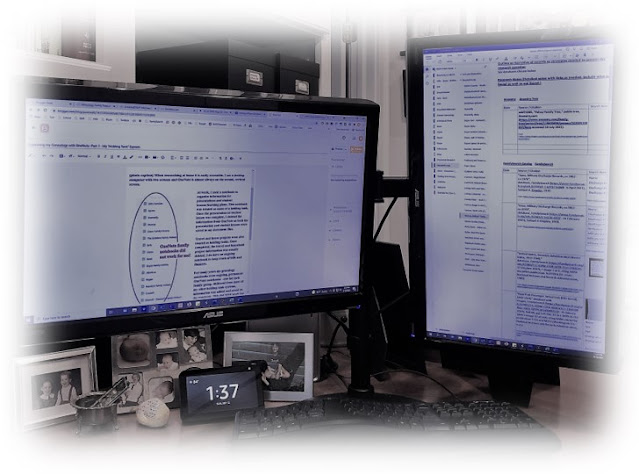
When researching, OneNote is almost always on the second, vertical screen.


Since 2003, I have used Microsoft OneNote for all aspects of my life - my work as a speech-language pathologist, keeping track of household bills, travel, house projects, and genealogy. 

OneNote allows you to create digital notebooks that can be divided into sections with an endless number of pages. Notebooks are easily searched and shared. Files, including audio and video files, can be added. Use drawing tools to annotate notes with your stylus, finger, or mouse. All of this is free.[1]

I like that OneNote can be used across platforms and quickly syncs as I add new information. This makes it easy to access the same information on my desktop, laptop, iPad, and phone. One of my favorite features is printing to OneNote, eliminating the need to print almost everything.